
In-App Purchase Tutorial
In-App Purchase is a great tool for sales setup if you offer additional functionality or features to your iPhone application. But it’s not that easy to get the job done…
Here are some key tips for working with In-App Purchase that will help you add your products to the AppStore.
– Purchased Products Types in the In-App Purchase
– Model of Server – Application Interaction in the In-App Purchase
– Pitfalls in Choosing Purchase Types in the In-App Purchase
– In-App Purchase Sample Code and Implementation
– Creating the Purchase Product and Test User
In-App Purchase Process
The connection with the Appstore has carried out through the StoreKit framework that is delivered with SDK starting from the 3.0 version. The core steps of the process are:
• the developer using itunesconnect.apple.com creates some virtual product with a name, description, and price
• the application connects to the Appstore and purchases the virtual product
• the application makes required changes or/and does certain actions (unlocks particular levels, makes a sound, enables monthly subscription for access to the information storage, magazine archive, etc. )
Purchased Product Types in the In-App Purchase
There are three types of products you can create:
• Consumable
• Non-Consumable
• Subscription
Consumable. According to the type name, the product can be purchased several times. For example, arrows or bullets for a game.
Non-Consumable. Someone can do only one purchase. This type of purchase is used to unlock new themes, additional levels, and so on.
Subscription. Subscription to any kind of service. This type can be used for a web service app to purchase a monthly premium account. Product of this type must be supported by different devices and users can make entries using one account.
Note! StoreKit framework offers tools to get transactions history, but the history will contain only the Non-consumable products transactions. For other types of products, create or use another server to store this information.
Model of Server – Application Interaction in In-App Purchase
A model of the server interaction can be described in the next 8 key steps:
• The application requests the list of the products from your server
• The app displays the list of the new products to the user
• The user either purchases the product or doesn’t buy it
• The app requests the purchase from the Apple’s server using StoreKit
• StoreKit sends the answer as a transaction
• iPhone application sends to its server a so-called receipt
• Application’s server validates the receipt on Apple’s server
• The iPhone app downloads the product from its server
Pitfalls in Choosing Purchase Types in the In-App Purchase
Apple is rather strict about the purchase type you’re using for the application.
If the developer has an intention to create a monthly subscription for current updates (let’s say to get new jokes from the web) but has no desire to implement the support for the range of devices, then he can’t use this purchase type. The Subscription type forces you to implement the support of many devices though Apple doesn’t provide any tools to facilitate this part of development.
The Consumable type seems to be a simple decision to make in such a situation: it doesn’t require device support and it’s easy to use. BUT: when trying to get project approval from Apple you’ll face rejection as Purchase doesn’t correspond application’s logic and confuses the user. Thus, if there is any hint on Subscription logic (or Apple can see it) the developer is forced to implement all the necessary features.
The uncertain regulation provided by Apple is the pitfall for the developers who are trying to estimate the application with In-App Purchase but have never had a deal with it before.
The best way out is to follow the implementation model provided by Apple. If it’s said in Apple’s docs “We recommend you to…” you should read “Implement the application this way only… or else…”
In-App Purchase Sample Code and Implementation
Here is an example of the In-App Purchase implementation structure for a simple case
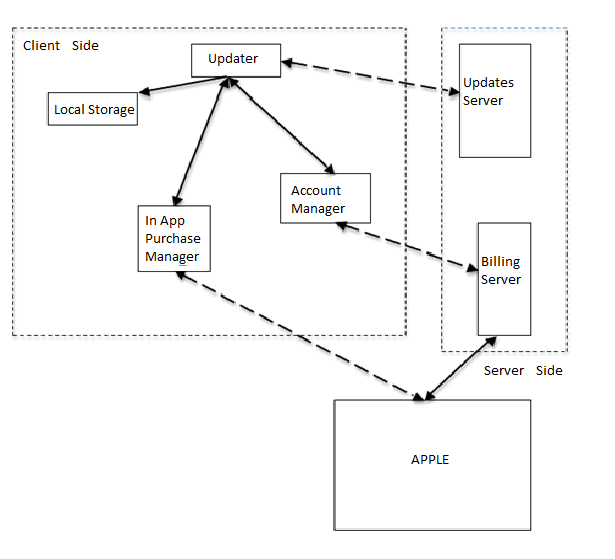
Pic. 1. Architecture of the Update Unit
Here we have an application that has one product of the subscription type that gives you the opportunity to update twice a month. The application is free but has no trial period. Instead of the trial period, the app has some firmware that lets you use the app without purchasing the updated subscription.
|The Updater is a class whose task is to download and set up updates for the application. Before each update, it checks for the updates permission. To perform this, the Updater refers to the Local Storage.
Local Storage is an abstract and optional unit that stores information about subscription starting and expiry dates (preferably codified) locally. Local Storage is made to save some traffic and secures the situation when the billing server is unavailable.
If the Local Storage has no information, the Updater decides if it is possible to reinstall the app and refers to the AccountManager. The AccountManager returns all the required information or starts the registration or log in process.
When the date information is obtained the confirmation is carried on. If the subscription isn’t expired, then the update is performed otherwise and the request to InAppPurchaseManager takes place. The update purchase is offered to the user. Then using the StoreKit framework tools the InAppPurchaseManager carries on the transaction and returns the result to Updater. The Updater sends the receipt to the BillingServer to validate it. After successful validation Updater gets a new subscription date, saves it to Local Storage, and updates the information.
We can’t put here all the listings of the LocalStorage and AccountManager as their code will require dozens of pages. But we give you an In-App Purchase sample code from the real project where it was called InAppPurchaseController.
//-----------InAppPurchaseController.h--------------

#import <Foundation/Foundation.h>

#import <StoreKit/StoreKit.h>

@class inAppPurchaseController;
This class interconnects with the Updater using a protocol that sends messages when the info about the product and payment transaction (or error) is uploaded (otherwise the error occurs).
@protocol inAppPurchaseControllerDelegate

- (void) purchaseController: (inAppPurchaseController *) controller didLoadInfo: (SKProduct *) products;

- (void) purchaseController: (inAppPurchaseController *) controller didFailLoadProductInfo: (NSError *) error;

- (void) purchaseController: (inAppPurchaseController *) controller didFinishPaymentTransaction: (SKPaymentTransaction *) transaction;

- (void) purchaseController: (inAppPurchaseController *) controller didFailPaymentTransactionWithError: (NSError *) error;

@end
strPurchaseId is the class property that implies the work with the single product at the instant moment. The class can get the Product description and then purchase it.
@interface inAppPurchaseController : NSObject <SKProductsRequestDelegate, SKPaymentTransactionObserver>
{
 NSString   *strPurchaseId_;
  id <inAppPurchaseControllerDelegate>   delegate_;
}

@property(assign) id <inAppPurchaseControllerDelegate> delegate_;
@property(copy) 	NSString    *strPurchaseId_;

- (void)    loadProductsInfo;
- (void)    makePurchase: (SKProduct *) product;
- (BOOL) isPresentNonFinishedTransaction;

@end

//-------	InAppPurchaseController.m-----------

#import "inAppPurchaseController.h"

@implementation inAppPurchaseController

@synthesize strPurchaseId_;
@synthesize delegate_;
With the initialization, the class subscribes to messages from SKPaymentQueue. There is a payments queue where the query is sent to.
- (id) init

{

if(self = [super init])

{

[ [SKPaymentQueue defaultQueue] addTransactionObserver: self];

}

return self;

}

- (void) loadProductsInfo

{

SKProductsRequest *request = [ [SKProductsRequest alloc] initWithProductIdentifiers: [NSSet setWithObject: strPurchaseId_]];

[request setDelegate: self];

[request start];

}
Before the payment transaction is added to the queue, it’s necessary to check whether it can be done at the moment. Which is implemented by the call of the canMakePayments method from the class SKPaymentQueue.
- (void) makePurchase: (SKProduct *) product

{

if(![SKPaymentQueue canMakePayments])

{

[delegate_ purchaseController: self didFailPaymentTransactionWithError: [NSError errorWithDomain: @"payMentDomain" code: 123 userInfo: [NSDictionary dictionaryWithObject: @"can not make paiments" forKey: NSLocalizedDescriptionKey]]];

}

SKPayment *payment = [SKPayment paymentWithProduct: product];

[ [SKPaymentQueue defaultQueue] addPayment: payment];

}

- (BOOL) isPresentNonFinishedTransaction

{

NSArray *arrTransactions = [ [SKPaymentQueue defaultQueue] transactions];

for(SKPaymentTransaction *transaction in arrTransactions)

{

if([transaction.payment.productIdentifier isEqualToString: strPurchaseId_])

{

if(transaction.transactionState == SKPaymentTransactionStatePurchasing)

{

return YES;

}

else if(transaction.transactionState == SKPaymentTransactionStateFailed)

{

[ [SKPaymentQueue defaultQueue] finishTransaction: transaction];

}

}

}

return NO;

}

#pragma mark ---------------request delegate-----------------

- (void)requestDidFinish:(SKRequest *)request

{

}

- (void)request:(SKRequest *)request didFailWithError:(NSError *)error

{

[delegate_ purchaseController: self didFailLoadProductInfo: error];

}
When getting the products list we check if it is in the products array and the according result is sent as the message to the delegate.
- (void)productsRequest:(SKProductsRequest *)request didReceiveResponse:(SKProductsResponse *)response

{

NSArray *invalidIdentifiers = [response invalidProductIdentifiers];

NSArray *products = [response products];

for(SKProduct *product in products)

{

NSString *strId = product.productIdentifier;

if([strId isEqualToString: strPurchaseId_])

{

[delegate_ purchaseController: self didLoadInfo: product];

return;

}

}

if([invalidIdentifiers count])

{

[delegate_ purchaseController: self didFailLoadProductInfo: [NSError errorWithDomain: @"purchaseDomain" code: 143 userInfo: [NSDictionary dictionaryWithObject: @"No Products found" forKey: NSLocalizedDescriptionKey]]];

}

}

#pragma mark -------------------transaction observer-------------------
This method is called for every transaction status change. The product is considered purchased when the transaction status is equal SKPaymentTransactionStatePurchased.
- (void)paymentQueue:(SKPaymentQueue *)queue updatedTransactions:(NSArray *)transactions

{

for(SKPaymentTransaction *transaction in transactions)

{

SKPayment *payment = [transaction payment];

if([payment.productIdentifier isEqualToString: strPurchaseId_])

{

if(transaction.transactionState == SKPaymentTransactionStatePurchased)

{

[delegate_ purchaseController: self didFinishPaymentTransaction: transaction];

[queue finishTransaction: transaction];

}

else if(transaction.transactionState == SKPaymentTransactionStateFailed)

{

[delegate_ purchaseController: self didFailPaymentTransactionWithError: [NSError errorWithDomain: @"purchaseDomain" code: 1542 userInfo: nil]];

[queue finishTransaction: transaction];

}

}

}

}

- (void)paymentQueue:(SKPaymentQueue *)queue removedTransactions:(NSArray *)transactions

{

}

- (void) dealloc

{

[ [SKPaymentQueue defaultQueue] removeTransactionObserver: self];

[super dealloc];

}

@end
Creating the Purchase Product and Test User in iTunes Connect
You should enter ‘Manage Your In-App Purchases->Create New’ in iTunes Connect then choose the required application.
Choose Bundle ID and fill in the information about the Purchase (type, name, price, etc.). You should define ‘Product ID’ that can be of any kind but we advise you to use Reverse DNS. The best name for Product ID is the combination of the Bundle ID of your app and the feature’s name.
To test the In-App Purchases you should have at least one Test User. Go to ‘Manage Users->In App Purchase Test User’ and choose ‘Add New User’. Fill in the information about the user. Test User e-mail doesn’t have to be real.
That’s all. Wish you successful testing!
Hope this information was useful for you. If you’ve got questions about In-App Purchase or about Objective C programming, leave it as a reply and we’ll answer them as soon as possible.
Author: iPhone Development Department.


7:27 am
Nice tutorial, only thing I had trouble with was copy/pasting the code as i noticed the symbols were escaped as >
11:04 am
Hi,
Glad you liked the post. I checked the code for copy/pasting and found out there was a problem with one peace of code (inAppPurchaseController interface). I’ve fixed it and now it’s pasting correctly.
1:55 pm
Hi I would like to know how how to use the server application model for in app purchase. if u have a sample application or code it would be great.
Thanks
1:58 pm
i would like to use in app purchase for a single time purchase.
3:20 pm
Hi, Vimlesh.
You may use the product type “non consumable” for a single time purchase. You may develop your In App Purchase functionality without server-side because you can restore the transaction history for this product type.
2:12 pm
Hi iphoneDepartment,
your tutorial was very useful to me and understand more about IAP implementation. Can you tell me how to integrate our own server for product purchase. Because i need to fetch the books from my own server and shown to user. Can you please tell me the idea behind it.? then one more question is that transaction receipt and acknowledgement for payment is handled by storekit app delegate or we need to write code for server side maintaining this history? am going to implement non-consumable type only..
Thanx in advance…
With Regards
Swami
7:09 pm
Hi,
your post is very helpful. Thank you !
Here I’m stuck with the problem whether I should chooses subscription as the product type or consumable. I implemented everything so that a consumable is treated as if it was a subscription… But I’m afraid Apple won’t like that…
My question is, does apple handle anything related to the time of a subsciption ? If I present an user the buy dialog a second time, lets say 30 days later, the purchase framework says that the product was already purchased before…. In that case I have no clue if the user was billed or not. He should have been since I want the subscription to expire after 30 days… But how can I be sure ?
Thanks,
Alexander
2:11 pm
Hi Alexander.
We don’t recommend you to choose product type “consumable” to use it as “subscription”. You are quite right that Apple will reject your application in this case.
Unfortunately using purchase product type “subscription” obliges developer to implement some features (for example, provide a subscription support from a few user’s devices). Plus Apple does’t store the transaction history for this type of product, so you need to implement a server side where subscription parameters will be stored (that would be additional work for you).
12:23 pm
Hi, I have my 9 comic book binaries uploaded to Apple Store already but they require me (last night) to consolidate them all into a single In-Apps Application then ready for Sale.
Do you have services to help create an In-App application for comic book purchases? It will simply be similar to all other comic book reader out there. Purchase and download a copy.
Your response on this matter is highly appreciated.
–Andrew
1:05 pm
You don’t need to use any special services. We think you should write a single app, that may read any comic book (in your
own format), and the books’ sales will be made via in app purchase. It’s the implementation task for developer but not the task for services.
Wish you a lot of readers.
4:56 am
Quick question… can in-app purchases be priced at “free”
In other words, can I release an app (free or paid) that has the ability to upgrade its features for free within the in-app store. This would allow be to release the app in a minimal, small size state and then let the users pull down the large data as they want it without paying for it.
Thanks!
Zack
1:40 pm
Hi, Zack!
In the In App Purchase you can’t have the price which value is “free” because it is the billing system only.
The In App Purchase product is virtual thing that doesn’t allow to store some application data inside it. It only allows to keep the data about the payments, dates of transaction and other required details.
3:18 pm
Hi,
Very nice tutorial,OK… whether we can download rejected application through In-App Purchase???…. How??.. and how to get my server contents(Songs, Photos) through In-App Purchase???..
6:31 pm
Hi, Suresh,
Unfortunately I haven’t understand you question about downloading rejected application through In-App-Purchase so can’t answer it.
About getting contents the scheme looks like the following one.
Your application makes payment transaction via In-App-Purchase. When transaction is finished successfully application obtains transaction receipt. Then application sends that receipt to its server side and server validates the transaction. If the validation is successfull server returns this information to application and enables it to download some song or image.
This is an approximate scheme, of course.
8:14 am
Hi,
Actually App store was rejected my Application , now that application is not there in App store , But i want to download that rejected Application… It is Possible through In-App purchase??? Possible means how??? I don’t want to download full application, i just want to download contents(Songs , Images ) of the rejected Application!!!!
Thanks for Your Reply!!!
12:00 pm
Hi,Suresh.
As was described above In App Purchase product is virtual thing that must provide one thing – fact of a payment. All logic that provides downloading content or other behavior is implemented by the developer only. So you can’t buy rejected application or any part of it through In App purchase because you can’t implement this by programming.
Moreover you can’t implement it in any way. If you want to download rejected application contact Apple and ask them to send binary to your email.
7:15 am
Hi,
thanks for the tutorial and code samples. I’m just getting started with in-app purchase (non-consumable, no server) and was wondering if you had some examples (code) on how to use this class. For example, would you just set the product id from the calling class? Do you need to run anything in the background?
Thanks
Christina
7:32 am
I have been wondering: Can I sell the same product in 2 different apps? Like if I have an iPad version and an iPhone version, which are different applications in the store, can I sell the same product in both, so that users need to pay only once?
6:24 pm
Hello, Christina
You can’t sell the same product in two different apps as there would be only one product. But you may handle this case in your applications server side and users will pay only once. Let’s say server will check if the user has purchased the product for one app and if the it’s positive then it will provide free access to the product for another app.
11:15 pm
Thanks for the answer. I think I’ll try making a Universal app before I get into Server side code.
8:11 am
Got it working… For one app and one product, that is. Thanks!
12:49 pm
Glad, you’ve made it!
3:35 pm
Hi Christina,
i’m trying same thing, but i didn’t get, pls can u send the code for this mail suresh@i-waves.com
4:59 pm
Hi,
I am using subscription modal for IAP, I am stuck at the the following point:
“Subscriptions must be provided on all devices associated with a user. In App Purchase expects subscriptions to be delivered through an external server that you provide. You must provide the infrastructure to deliver subscriptions to multiple devices.”
Please let me know how I can get this??
9:50 am
i wanted to know about the server-side handling for subscription type purchase
12:03 pm
Hi Prakash and Vimal,
Well, the server side structure depends on concrete application’s specification. Its behavour is not sctictly determined and might be of any kind depending on the app’s purposes and developer’s approach.
So it’s up to you how you will implement the server side support of different devices but you must provide it for the Subscription Purchase to get approval from Apple.
12:23 pm
Thanks for same.
But Question is here, How we can identify which Devices are attached with same iTunes User ?
We are using “restoreCompletedTransactions” method listed in SKPaymentQueue for Restore process on user interaction. But Apple rejected app with saying “Subscriptions must be provided on all devices associated with a user”.
Could you please little more hint on same, would be great.
5:00 pm
Now I see your point.
The deal is that “restoreCompletedTransactions” isn’t supported by Apple for product type “subscription”. Thus subscriptions are not to be provided on all devices.
In such a case in your server-side you associate user with his own login and password, not with the iTunes account of the user.
10:32 am
Hi,
You mean I need to provide an login system in my app, but payment system will be done by using iTunes. Is this correct ? Apple will allow this ?
3:36 pm
Yes, you are right.
That’s what Apple says about this: “In App Purchase expects subscriptions to be delivered through an external server that you provide. You must provide the infrastructure to deliver subscriptions to multiple devices.”
1:28 pm
Hi,
Can anyone provide few examples of free app in the store having in-App purchases implemented.
Also I wanted to know, whether Appstore guidelines allows the accessing of user information prior to purchase as in NDTV app in the app store have though.
Also do the Appstore guys really purchase the in-App purchases while reviewing the app and in-App purchase or they just go through the Screen Shot submitted
11:50 am
Hello, Pramod Jain,
When searching for the free app in the store try this one: textPlus Free Text + Unlimited FREE App -To-App Messaging WorldWild.
What user information do you mean when speaking about Apple guidelines? There is no official API calls that have access to user’s iTunes account if you mean that.
Question about AppStore guys actually buying (or not) the app and in-app purchase is a good one. But that only Appstore guys know …
Your dedicated iPhone Development Department.
8:54 am
Hi iPhone Department,
Thanks for the fast reply. Let me make clear the first question and also one more.
First Question:
Suppose I have to write a subscription logic (an in-app to be subscribed for a year or month so..) on my server side. Then I should have any of the user information such as user email id, user device id or any information related to the user.
Now I would like to know which such information of the user would be appropriate.
If I take the UDID, the subscription would be restricted to only one device. But as the subscription type of product for in-App purchase says to be supported for 5 devices (as per DRM).
If I ask the user email id and store it in the user defaults , I just doubt whether its a correct way to implement the in-App purchase.
Second Question:
Can we make the Consumable app (which are required to be purchased on every click of the feature to be used), as subscription for a particular limit of time. For eg. if I create a consumable app(in iTunes connect) say video feature(as NDTV app have) and by taking the user email id as a base(user info) and write the logic on the server, such that it can be used only for a year or so..limited time.
Does appstore have any restrictions over this..
Regards,
Pramod Jain.
9:03 am
Hi,
One more question..
Do the in-App purchase should be available for every device the user uses or it can be restricted to only one device by taking UDID of the user.
3:36 pm
Hi,
To the first question:
You may use any information such as e-mail or login-password to identify user in your database. It must be the information that user can input by himself. You may use UUID as additional information in your database (if you want to prohibit user to register multiple times from one device for example).
To the second question:
If Apple will suggest that your product looks like subscription but application uses consumable product your application will be rejected. Apple will suggest it if there is any hint of the Subscription type and we believe the time limit is one of them.
4:36 am
Hi,
First, thanks.
I have one question. I have a free app which includes an iAd banner and I want to use the in app purchase to allow the user to remove this banner. Everything is OK when the user pays for the in app purchase the first time. I save this information with NSUserDefaults to know if I hide or not the iAd banner. But if the app is removed from the phone, I don’t get it which functions to call to know if the product has already been purchased or not. I hope I was clear, thanks for your help.
Regards
12:11 pm
Hi Jonmars,
restoreCompletedTransactions method in StoreKit works with non consumable products that, I think, you’re using for this purposes.
Hope this hint will help you.
11:57 am
Hi All,
I need a help here, i am done with the all the steps above now i am not able to understand how and from where do i need to upload the binary.. is it from “Manage Your Applications” ? or from anywhere else.. I have uploaded 1 lite version of my app now i am not at all clear about from where do i ned to submit the pro version binary.. Kindly give me CLEAR STEP BY STEP INSTRUCTIONS TO FOLLOW.
THANKS IN ADVANCE
12:23 pm
Hello Parijat,
We told about the binary file to Suresh because it might have helped him in his certain case. Unfortunately we can’t help you with the step-by-step instructions as we can only answer clear and precise question.
But perhaps other visitors can provide you some help.
4:36 pm
I want to develop an in-app purchases application (consumable type, one-time services with 2 options: for example $1 and $10 for each option). Each time, when users request to upload 1 image, my app will cost them with different prices. So I must create 2 virtual products with 2 prices, that’s right?
12:33 pm
Hi Mr.Blak,
Yes, you are right.
11:02 am
Hi there,
I have two questions:
1) Suppose I have an article as a subscription; I buy it on my first device; If I do the same with a second devices I get the following message: “You’ve already subscribed …” This is true but I CANNOT TRAP THIS ACKNOWLEDGMENT so if I buy the subscription from my second device I WILL NOT EXTEND THE FIRST SUBSCRIPTION.
Of course I build a username/password system that let the users to register more than one device (as Apple states), but if the user does not register the second device, he/she will buy the subscription once again.
There is a way to resolve this issue????
2) Ok I build a username/password to restore subscription on different devices. Now can I LIMIT the restore on say no more than 4 devices???
I agree that users have to use the subscription on their devices but if I don’t limit the restore, one user can give his/her account away so I have one subscription payed and DOZEN of users.
Thanks
12:32 pm
Hello Oscar,
To the first question:
1) You should check your subscription through application server and shouldn’t initiate buying subscription again.
To the second question:
2) Apple may reject your application if it have any restriction in number of devices.
Hope this will help you in iPhone app development.
1:05 pm
Thanks for the answer.
About the first one:
How can I check the subscription?
I cannot know the iTunes connect user that already subscribed. I have only a new UDID and if the user doesn’t confirm the subscription with my user/pass system I cannot link the already payed subscription with the new devices.
Thanks
3:05 pm
Dear All,
We created an app in the developer portal as ‘Main app’ with the product id as com.companyname.mainapp and also two inapp purchase apps as ‘Sub app1’, ‘Sub app2’ with the product identifiers as com.companyname.mainapp.subapp1 and com.companyname.mainapp.subapp2.
We wrote the code to handle the payment and once the transaction state reaches SKPaymentTransactionStatePurchased.
It is the responsibility of the apple to download and install the Sub app1 in the device? or do we need to write a code to install the sub app1 or sub app2 in the device.
Note: We use the in app store inside the main app ie we have sub app1, sub app2 with the buy now button.
Another question : After we purchase the Sub app1. Do we need to show as buy now inside the Main app for Sub app1 or show the status or button as Installed?
Thanks,
Vijay
1:28 pm
Hi Vijay,
All the functionality of the iPhone/iPad applications is implemented only by developer. Apple can’t download and install app unless it is specified in the code of the app so it’s all up to the logic of the app you develop.
2:36 pm
Hi,
Thank you for your reply. In my app, after we click the Buy now for the product in the main app. It goes to the product request, payment process and i receive the alert message as Thank you for purchasing the app. Can you give me a sample of how to download and install the product (eg: sub app1) to the device?
Note: we should see the apps like Main app, sub app1 in the device. The sub app1 will be a separate app installed after purchasing and downloading using Non-Consumable. We have submitted the Main app as well as Sub app1, Sub app2 binary files to the itunes connect.
Thanks,
Vijay
3:57 pm
I am clueless of how to delivery the purchased product (separate app) to device by downloading and installing. Any sample code will be help full. My email id is kvijayshankar1982@gmail.com
Thanks,
Vijay
1:08 pm
There is no way to download and install the application from AppStore using another application.
6:00 pm
Hi,
I don’t mean to download and install an application from app store from another application. I mean how to download and install in app purchase app like how the AppShopper app in the iTunes store. If i install an app from the inapp store (AppShopper) that app is downloaded and installed onto the device along with AppShopper. I don’t have the idea about the code to implement the above process after the inapp purchase payment process.
Thanks,
Vijay
12:59 pm
Dear Vijay,
We provided some available sample code in the article. Custom made source code (the one you are looking for) can be implemented only for our clients.
Study Apple guidelines and other materials on the topic and you’ll be able to create it by yourself.
Best regards
8:18 pm
Thank you for your reply. do i need to submit the binary files for each product and wait for it to be approved by apple before submitting the in app purchase app (bundle)? because my in app purchase was rejected as the products binary was still in the review status.
Thanks,
Vijay
5:56 am
Dear Concerned,
We created an app, currently we know that there will be two different non-consumable products, so we created two different product id’s & hard coded in our code snippet. But in future there can be more than two products or less than two, so how can we manage the product id’s so that the current code snippet can accommodate the new products too.
Is there a direct way to get the complete list of the products for the specific application without specifying product id by default?
If possible, please explain using source code…
Thanks & Regards,
Zahur
1:21 pm
Hi Zahur,
You may store product identifiers on your server-side. Thus you will have the opportunity to load identifiers on the server without resubmitting the application to App Store.
1:37 pm
Dear Concerned,
Thanks for the quick reply. We are just stuck with the below code snippet
SKProductsRequest *request = [[SKProductsRequest alloc] initWithProductIdentifiers:[NSSet setWithObjects:@”PackID_1″,@”PackID_2″,nil]];
Now, We need to make the NSSet to be dynamic. We mean that we load the product id’s from the server as a Mutable Array, now we need to pass those product id’s in the above request. But we are confuse how to do that…
Please guide us ….
Thanks & Regards,
Zahur
1:55 pm
We would like add one more thing that is it compulsory so send the product request before buying event occurs
1:08 pm
Hi Zahur,
The question you asked has no attitude to the article and we can’t provide you the solution here. But you should see the Apple guidelines and other books and tutorials (related to the topic) that can be easily found in the web. We believe in your case they’ll be more helpful.
4:21 pm
Hi,
I am new in iTunes store. and i have create a iphone application and i want to use apple In-App-Purchase in my application and its my first application. and i want to submit this application to apple store. but it needs minimum one paid application submitted on apple store before use In-App-Purchase. so can any one suggest how i submit my first application on apple store with in-app-purchase.
Thanks
12:15 pm
Hi Mitesh,
You need at least one paid application because you have to implement the logic for the payment transactions, there are should be ids for users to identify them as well as some other points. See the guidelines provided by AppSrore for the paid iPhone applications and carrying out payment transactions. Then it would be easier for you to deal with in-app purchase implementation.
2:38 pm
Do the appstore accepts following scenario :
I had a functionality available to the user available for free, for a particular period of 30 days. Then after 30 days user will be asked to subscribe, using in-app purchase functionality
Do Appstore HIG agrees this method of in-app purchase subscription model.
Also where can we find the app store Guidelines for submitting the in-app purchases, especially subscription model.
12:24 pm
Hi Pramad,
YES, Appstore HIG agrees this method of in-app purchase subscription model.
You can find Apple guidelines on the developer.apple.com among other documents for developers.
11:57 am
I received a rejection email from Apple for the following reason:
17.2 Apps that require users to share personal information, such as email address and date of birth, in order to function will be rejected
Does this mean I shouldn’t use an e-mail as the username?
I also must include a text as stated in the mail:
It would be appropriate to make it clear to the user that registering will enable them to access the content from any of their iOS devices, and to provide them a way to register later, if they wish to extend membership to additional iOS devices.
Right now the user must register to get the 30 days trial and can then subscribe for more days at any time.
Would it be enough to just include that text or must I enable the 30 days trial before registration per nsuserdefaults, which would allow the user to delete and re-install the app to get another 30-day trial?
12:02 pm
I created application in itunes connect, added in-app purchases with id’s, description etc. In my app, I’m requesting the product info and I always get “No products found”.
I created test mail id in itunes connect. In my iphone before running the app, i logged out of itunes account.
when i’m running the app, its not even asking me to provide username and password. When will it ask me the credentials? How to debug the issue?
9:07 am
Nice tutorial. I have not implemented it till :) but it give me way how to go. Thank u
5:17 am
i can’t do any in-app purchases, the applications gave me always the same message that I should contact iTunes support to accomplish the transaction i redo and redo the some operation and always the same result, I checked the credit card, my informations….etc aand everything is normal and functional i hope you can help me to fix this problem.
Sincerely yours,
Wael Wehbe
1:15 pm
Please describe the steps you have done to create in app
purchase product in more detailed way. The information you gave us is not enough to understand the reason of the problem.
4:34 pm
Hi,
Do you know if it is possible to automate new product entry process? In our case, we have a lot of products in our database and we want to synchronize our DB with In App Purchase products.
Thanks for the nice tutorial!
1:08 pm
I think it is not possible because Apple processes each product
separately. All actions must be performed through Apple’s site so there is no simple approach to synchronize it with your DB.
9:28 pm
Hello iPhone Department:
Thank you guys for a great tutorial and codes. I have a question, I heard from somewhere that you can not make your app expired in a year. But MLB (not sure if I got the name correct) took some functionalities off their MLB app and introduced a new one MLB2010 and force buyers to buy that new version.
Would Apple allow that implementation to no longer support an old paid app and having user buy a new one or a new one with a subscription based services?
Thanks guys for reading my question!
4:03 pm
Apple doesn’t say anything special about subscription period except the next phrase:
subscription must have minimum period of one month. Anything else is up to you.
9:32 am
HI iPhone Department,
In that tutorial, u mentioned in-App Purchase process “The application makes required changes or/and activities (unlock particular levels, makes a sound, enable monthly subscription for access to the information storage, magazine archive, etc..)” like that.
Now i need same thing, i have one free app in app store, that app can access limited level.
I want make that app in full access level (like open the levels) using in-app purchase(change free app to paid app). How can it’s possible?., u have any same code or any suggestion pls??
4:22 pm
Hello I have gone through the steps but I am unable to understand where I have to write which code please guide me or give me step by step solution how start new application for In-App-Purchasing. Thank you.
4:37 pm
Or please put up sample code for guidance. Thank you.
11:31 am
Hello Nitesh,
As you are a beginner iPhone developer we advice you to start with Apple Guidelines we have mentioned in our replies before and look though other related web sources. We believe it will help you out.
5:49 pm
Hi,
Can we purchase one item several times using InAppPurchase….?
6:00 pm
I will describe my problem in detail…..I am doing a business application…User want to purchase an item more than once at the same time. Now Apple account has only id for 1 item . How can we purchase one item several times using In App Purchase…?
7:10 am
Hi,
I am developing in-app Purchase application. my code looks like this
// to get productid
[[SKPaymentQueue defaultQueue] addTransactionObserver:self];
NSSet *productIds = [NSSet setWithObject:addonId];
skProductRequest = [[SKProductsRequest alloc] initWithProductIdentifiers:productIds];
skProductRequest.delegate = self;
[skProductRequest start];
}
– (void)productsRequest:(SKProductsRequest *)request didReceiveResponse:(SKProductsResponse *)response {
if (response == nil) {
NSLog(@”Product Response is nil”);
return;
}
if ([response.products count]==0) {
NSLog(@”There is no Product response”);
}
if ([response.invalidProductIdentifiers count]==0) {
NSLog(@”There is no Product identifier”);
}
/*for (SKProduct* product in response.products)
{
NSLog(“Valid Product”);
}
for (NSString* invalidProduct in response.invalidProductIdentifiers)
{
NSLog(“Invalid Product – %@”, invalidProduct);
}
*/
//invalid identifier
for (NSString *identifier in response.invalidProductIdentifiers) {
NSLog(@”invalid product identifier: %@”, identifier);
[activity stopAnimating];
}
for (SKProduct *product in response.products ) {
NSLog(@”valid product identifier: %@”, product.productIdentifier);
SKPayment *payment = [SKPayment paymentWithProduct:product];
[[SKPaymentQueue defaultQueue] addPayment:payment];
}
}
– (void)paymentQueue:(SKPaymentQueue *)queue updatedTransactions:(NSArray *)transactions {
BOOL purchasing = YES;
for (SKPaymentTransaction *transaction in transactions) {
switch (transaction.transactionState) {
case SKPaymentTransactionStatePurchasing: {
NSLog(@”Payment Transaction Purchasing”);
break;
}
// successfully purchased
case SKPaymentTransactionStatePurchased: {
NSLog(@”Payment Transaction END Purchased: %@”, transaction.transactionIdentifier);
purchasing = NO;
//end
[queue finishTransaction:transaction];
break;
}
// error in purchasing
case SKPaymentTransactionStateFailed: {
NSLog(@”Payment Transaction END Failed: %@ %@”, transaction.transactionIdentifier, transaction.error);
purchasing = NO;
// display alert
[queue finishTransaction:transaction];
break;
}
case SKPaymentTransactionStateRestored: {
NSLog(@”Payment Transaction END Restored: %@”, transaction.transactionIdentifier);
purchasing = NO;
[queue finishTransaction:transaction];
break;
}
}
}
if (purchasing == NO) {
[(UIView *)[self.view.window viewWithTag:21] removeFromSuperview];
[UIApplication sharedApplication].networkActivityIndicatorVisible = NO;
}
}
This code always returns with Invalid Product Id even if it is valid in apple store.
can anybody help me out??
6:43 pm
HI Iphone Dept
great resource thanks for sharing, we have our own subscription system working for our kids TV app and now want to transition to the IAP ( before the end of june:-)) We have a 30 day full trail, then you can transition to paid monthly or the free VALUE account. Right now we require email and password to setup account. I have a couple of questions.
1/ We have a number of coupons for extra months free usage out in the world, we are tracking that through our server and I was wondering the best way to have people use those on sign up, (I guess we could track time locally but what about multiple devices?)
2/ Does Apple allow the app to go to a free Value account on in app purchase after 30 days? Our idea is to have the 2 options, stay free but get the value account (less content) or pay subscription for all the content monthly. we want to remind them of this every time they open the app if the choose free. Also when an App is deleted and reinstalled how would we stop them from getting the free full account for a month again?
hope you can give us some feedback
yours
Tim
2:08 pm
Hi
I wish to implement subscription type in app purchase to my app. I have a iPad Only application, even then I need to support for all the other devices of a user to download my in app purchase product?
We already have an in app purchase (non-consumable type) app version for iPad only and now need to implement subscription model as a new version? Should I do this as a new version or I should do it as a new app altogether.
Will you guide me on this?
8:11 pm
Hi,
When someone click purchase on any in app purchase, why get a notice that says the following?: Purchase Upgrade
Missing product from App Store
I have a recent update of my app, but now i have this problem with the in apps purchases.
How can i solve it?
Can you help me, please?
Thank you in advance.
11:36 am
Hello Sir,
This is the great example to implement the in app purchase in apps, I have some basic questions . I would like to request you please provide me the answer if you have a time for these. I am going to implement the auto renewal subscription.
My question is follow as:
1 We need to upload my application in app store to test the apps,
2 I have created the test account. Is it work for sandbox login.
3 Is there any url need to heat for creating the connection between application to app store server.
4.How i can test my application before going to upload in the app store , is there any way to test in app purchase.
5 If we need to upload the application in app store then it is publicly available so this is not a good way to test the apps.
Please provide me step by step process to implement the Auto renewal subscription and which is the best way to implement.
if you can provide me any sample code then it will be very helpful for me.
Thanks in advanced
Tikam Chandrakar
11:58 am
Hi everybody!
Seem this thread is quite old, however I actually face the same questions.
So if anybody have the answers to this please reply:
Can we configure the app without upload it in AppStore in order to test in-app purchase?
And if yes where is the trap? :p (a check button to not check? an information to not add? an action to not perform? )
Otherwise thank to this good tutorial and for the detailled answers!
Hope to received one to my own!
1:02 pm
i can’t test in-App purchase o SandBox Enviroment,
Please help me!
if you can, please guide me step-by-step. if you have source demo will bi better!
Thanks! @@
6:12 am
i need help on in app purchase. i want to buy something but it won’t let me connect to it, it just says “the operation couldn’t be completed (SKErrorDomain error 0.)” please help me solve this problem
12:16 pm
Hi,
where can i get the full source code of inApp purchase tutorials.
can anyone helpme.
Thanks in advance.
8:53 am
Hi Santosh
you can get whole source code for inApp purchase at following url:
https://www.raywenderlich.com/122144/in-app-purchase-tutorial
I hope this url will help you.
2:22 pm
Hi Santosh,
You can also get full source code (whole project) for IAP tutorial
here:
https://xcodenoobies.blogspot.com/2012/04/implementing-inapp-purchase-in-xcode.html
Hope it will help someone. ;)
6:52 am
Thank you very much for detailed information about In-App-Purchase. It helpful me.
3:17 pm
Quick Question :
Is it possible to test IAP in Simulator or compulsory I need to test on Device?
Thanks,
4:00 pm
Thanks for such detailed explanation about In-App-Purchase.
Quick Questions :
For Testing In-app Purchase,
1) Do I need to test it in Device ?
2) Is there any need to upload binary & after a while reject the build from app Store ?
Are these checkpoints mandatory for testing the IAP.
Please
3:47 pm
how to purchase multiple different items using above code
3:38 pm
Great Code !
But: I`m a new iPhone developer – please can you post a simple CodeSnipped how I implement this class in my code !? I have a button and this will change the view of IAd with inAppPurchase – how i must call this code ? What must I do ?
Thank you very much ! (Sorry for my bad english – I`m german)
Uwe
11:21 am
We recently shared an open source library for in-app purchase on iOS. You can find it at https://project.soom.la/. The library can be used as reference code or as a complete SDK and it implements security and event handling as well.
9:35 am
If an app created a PDF document and required an IAP to email the document to the email recipient of their choosing, how would this be categorized by Apple?
7:53 am
Hey TIm
Were you able to get an answer to your question,
I have a similar issue. Also did you implement a purchase server? Mind sharing some sample code ?
9:27 am
Hi,
I am doing a modification in an app’s in-app purchase.Currently the app asks for the in-app purchase to be made each time he tries to enter a 2nd event, 3rd event, etc. The in-app purchase should only charge the user to enter the first one then the user can join all events from that point without being charged again.. I created a app -id and product in our apple account.the status of the product is “waiting for review” but when running this application on device it says invalid product id .what is the reason for it?
9:01 pm
Hii iphone development.your tutorial is nice…but i have a question …that i want to show products in inapp purchase that is comming from webservice…so how can i do this the app admin can add product any time because he has backend so he can add a product in backend…which is shown in my tableview when i hit the particular webservice….and how the price is decided in in app purchase..is their all the product have same price…..please answer my question………looking for ur response……
4:47 am
Hi,
your tutorial is nice… I want to make non-consumable in-app purchase so that users can buy missions. Is it possible to use my own user-id/password logic for non-consumable type?
3:09 pm
Hi,
I want to integrate it for make payments in my ios app.Can it is possible using this???